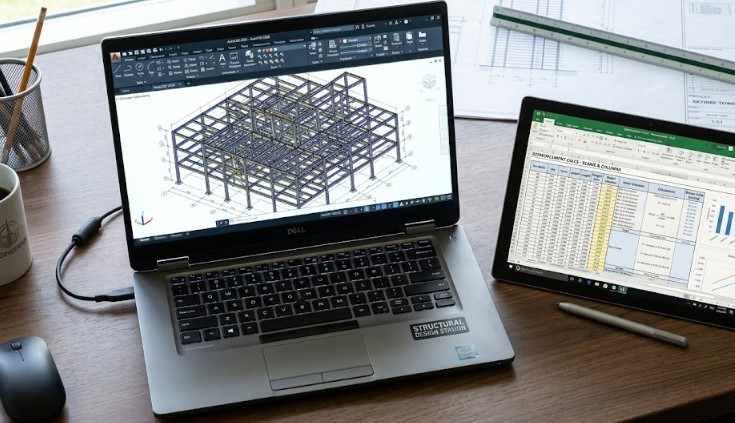
Laptop Requirements for Structural Design
To work efficiently, you must understand the laptop requirements for structural design before making a purchase. Structural engineering tasks, especially 3D modeling and large-scale calculations, demand high “single-core” processor speeds and plenty of temporary memory. While a basic laptop might open a file, only a high-performance machine will let you design without the frustration of lag.
Processor: The Brain of Your Design Station
The processor (CPU) handles every command you give to AutoCAD. For structural design, you should look for an Intel Core i7 or an AMD Ryzen 7 as your starting point. These processors offer the high clock speeds (measured in GHz) that AutoCAD needs to move lines and objects instantly.
In 2026, the recommended spec is a processor with a boost speed of 4.5GHz or higher. If you choose a budget i5 processor, you might notice “ghosting” or delays when you zoom in on a complex reinforcement detail while using your RCC spreadsheets.
RAM: Handling Heavy Spreadsheets and Multitasking
RAM is the “short-term memory” of your laptop. If you run out of RAM, your laptop will slow down to a crawl. For the laptop requirements for structural design in 2026, 16GB of RAM is the absolute minimum. However, we strongly recommend 32GB if you plan to keep your design software, Excel, and many browser tabs open at the same time.
Large RCC spreadsheets often use complex macros and thousands of formulas to calculate steel areas. With 32GB of RAM, your laptop can hold all this data ready for instant access. This prevents the “Not Responding” error that haunts many engineers when they update a design.
Graphics Card (GPU) and Screen Quality
AutoCAD is a visual tool. While a standard integrated graphics card can work for simple 2D drawings, 3D structural modeling requires a dedicated GPU. Look for a laptop with at least an NVIDIA RTX 40-series (like the 4050 or 4060) with 6GB to 8GB of VRAM to ensure smooth performance.
Furthermore, ensure your screen has at least a 1080p resolution. As a structural engineer, you spend hours looking at fine lines and small text. A high-brightness screen (400 nits or more) will also help if you need to review a drawing or check RCC spreadsheets while standing on a bright construction site.
Summary of Specs for Structural Engineering
| Component | Minimum Spec | Recommended Spec |
| Processor | Intel i7 / Ryzen 7 (13th Gen+) | Intel i9 / Ryzen 9 (Latest) |
| RAM | 16GB DDR5 | 32GB or 64GB DDR5 |
| Storage | 512GB NVMe SSD | 1TB or 2TB NVMe SSD |
| Graphics | 4GB Dedicated VRAM | 8GB+ Dedicated (RTX Series) |
Why an SSD is Essential
Never buy a laptop with a traditional Hard Disk Drive (HDD) for engineering work. A Solid State Drive (SSD) is much faster. It allows AutoCAD to load in seconds rather than minutes. It also makes saving large project files and RCC spreadsheets nearly instantaneous.
For your laptop requirements for structural design, a 1TB SSD provides the best balance between speed and storage space for your growing project library. Choosing the right hardware ensures that your focus stays on the safety of the building rather than the speed of your computer. For a deeper look into professional workstation benchmarks, you can find more information at Autodesk Support.
References
- Autodesk. (2026). Official System Requirements for AutoCAD 2026.
- Intel Corp. (2025). Comparing i7 vs i9 for Professional Engineering Workloads.
- Microsoft. (2026). Optimizing Excel for Large Engineering Calculation Sheets.
- Structural News. (2025). Top Laptops for Structural Engineers: A 2026 Buying Guide.