Capturing your computer screen saves time when you want to show someone a quick message or save a document. Many users constantly ask how to screenshot on Windows because Microsoft provides several ways to grab screen images. Fortunately, both Windows 10 and Windows 11 include built-in tools that make capturing your screen fast and simple.
+———————————————————————–+
| QUICK KEYBOARD SHORTCUT SUMMARY |
+———————————————————————–+
– PrtScn : Copies entire screen to Clipboard
– Win + PrtScn : Saves entire screen to Pictures -> Screenshots
– Alt + PrtScn : Copies active window to Clipboard
– Win + Shift + S : Opens Snipping Tool selection bar
Essential Keyboard Shortcuts for Quick Screen Capture
Keyboard shortcuts provide the fastest way to save your screen. For example, pressing the PrtScn (Print Screen) key copies your entire display to your clipboard. You can then paste the image directly into an email or document using Ctrl + V.
If you want Windows to save your image automatically, press Win + PrtScn together. The screen dims briefly to confirm the capture, and Windows places the image file inside your Pictures > Screenshots folder. Additionally, pressing Alt + PrtScn captures only the active program window, which cleans up unwanted background desktop clutter.
Using the Snipping Tool for Precise Screenshots
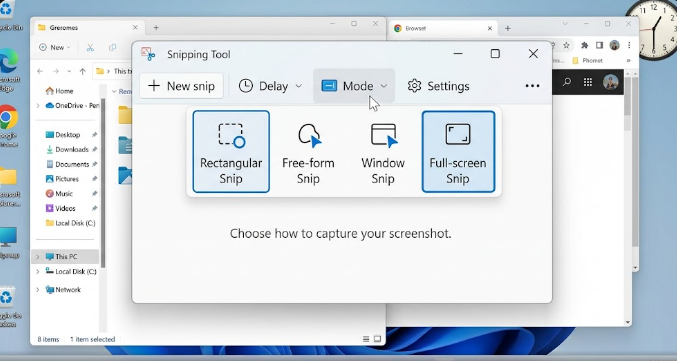
When you need to select a specific part of your monitor, use the built-in Snipping Tool. Press Win + Shift + S to launch the overlay bar at the top of your screen. This key combo lets you draw a box around any element you wish to capture.
+———————————————————————–+
| SNIPPING TOOL OVERLAY MODES |
+———————————————————————–+
1. Rectangular Snip : Click and drag a straight box
2. Freeform Snip : Draw any irregular shape around content
3. Window Snip : Click one specific open application window
4. Fullscreen Snip : Capture all connected monitors instantly
The Snipping Tool automatically opens a notification after you make a selection. Clicking this notification lets you crop, draw, highlight text, or add red arrows to your image. Furthermore, modern Windows 11 updates allow the Snipping Tool to record video clips of your screen activities.
Recording Screen Video Clips with Xbox Game Bar
Windows includes a built-in screen recorder named Xbox Game Bar. Although Microsoft designed this feature for gamers, anyone can use it to capture video of open applications. Simply press Win + G to open the main control panel.
Click the record button or press Win + Alt + R to start capturing your desktop activity. The system records your screen movement alongside video audio, saving the final video file in your Videos > Captures folder. Consequently, this free utility eliminates the need to buy third-party screen recording programs.
Advanced Third-Party Utilities for Specialized Needs
While native Windows features handle daily tasks well, free third-party utilities offer extra power. Programs like Greenshot and ShareX help power users who make tutorials or need advanced features. For instance, these apps can take scrolling screenshots of long web pages that extend past the bottom of your monitor screen.
+———————————————————————–+
| NATIVE VS THIRD-PARTY TOOLS |
+———————————————————————–+
| Feature | Windows Native Tools | ShareX / Greenshot |
|———————–|———————–|———————–|
| Speed | Instant | Requires installation |
| Scrolling Capture | No | Yes |
| Cloud Auto-Upload | Limited (OneDrive) | Yes (Imgur, FTP, etc.)|
| Text Recognition (OCR)| Yes (Snipping Tool) | Yes |
+———————————————————————–+
Third-party programs also automatically upload images to cloud hosts and generate shareable links immediately. Therefore, installing dedicated capture utilities saves valuable time for creators who handle hundreds of screenshots daily.
To review detailed system requirements and official keyboard commands, visit the official Microsoft Windows Support Guide.
References
- Microsoft Corporation. (2024). Use Snipping Tool to Capture Screenshots. Microsoft Support Documentation.
- Pogue, D. (2021). Windows 11: The Missing Manual. O’Reilly Media.
- ShareX Documentation Team. (2023). ShareX Screen Capture and Productivity Tool Guide. Open Source Documentation.