How to Install a Second WordPress Site in the Same public_html Folder

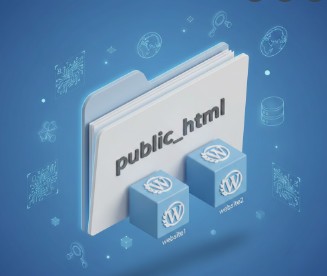
A 3D illustration showing how to install a second WordPress site in the same public_html folder using separate directories.

Many website owners want to run multiple websites without buying separate hosting plans. You can actually host multiple websites under one account by learning how to install a second WordPress site in the same public_html folder. This process is straightforward if you follow the right steps. By creating a specific subdirectory, you keep your files organized and ensure that your first website remains unaffected by the new one.

Why Use Subdirectories for Your Second Site?

When you decide to install a second WordPress site in the same public_html folder, you must avoid mixing files. The public_html folder is the main garage for your website files. If you just dump all the files for a second site into the main area, they will overwrite your first site’s files.

Therefore, you create a new “room” or folder inside the main garage. For instance, if your main site is in the root folder, your second site could live in a folder named site2. This separation ensures that each WordPress installation has its own space to function correctly.

Preparing Your Domain and Database

Before you move files, you need to prepare your domain. You must have a second domain name or a subdomain ready. In your cPanel, navigate to the “Domains” section. Here, you should point your second domain to the specific path, such as public_html/site2. This tells the internet exactly where to look when someone types your new web address.

Additionally, every WordPress site needs a database to store posts and settings. When you install a second WordPress site in the same public_html folder, you must create a fresh database. Use the “MySQL Database Wizard” in your hosting panel. Most importantly, use a unique table prefix like wp2_ instead of the default wp_. This prevents the two sites from trying to talk to the same data tables.

Uploading WordPress Files Manually

First, download the latest version of WordPress from the official website. Once you have the ZIP file, extract it on your computer. Next, use an FTP tool or the File Manager in your cPanel to create the site2 folder inside public_html.

After creating the folder, upload all the extracted files into public_html/site2. This step is crucial because it physically separates the core code of both websites. Consequently, you can update one site later without worrying about breaking the other one.

Using Softaculous for a Faster Setup

If you prefer a simpler method to install a second WordPress site in the same public_html folder, use an auto-installer like Softaculous. Find Softaculous in your cPanel and click on WordPress. When the installation screen appears, look for the “In Directory” field.

Type “site2” or your preferred folder name in that box. Select the correct domain from the dropdown menu. The software will automatically create the folder, set up the database, and install the files for you. This saves time and reduces the chance of making technical mistakes during the manual setup.

Managing Permalinks and Plugins

After the installation, log in to your new dashboard. You should check your permalink settings immediately. It is wise to use different structures or ensure they do not conflict with the main site. While you might want the same look for both sites, keep your plugins separate.

Each site should have its own set of active plugins. This practice prevents a buggy plugin on one site from crashing your entire hosting environment. If you follow these organized habits, your server will run much more smoothly.

Final Checks and Success

Testing is the final stage of the process. Visit your new domain to see if the site loads correctly. Check the original site as well to ensure it is still working perfectly. By following these rules, you have successfully learned to install a second WordPress site in the same public_html folder. For more technical details on managing multiple installations, you can read this guide on WordPress optimization.

References

  • WordPress.org. (2024). Giving WordPress Its Own Directory.
  • cPanel Documentation. (2025). How to Manage Addon Domains.
  • Softaculous Ltd. (2023). Installing WordPress in a Subdirectory.

How to Convert a DVD video to an MP4 video with VLC Player

To convert a DVD video to an MP4 video with VLC Player, follow these steps:

  1. Insert the DVD into your computer’s DVD drive.
  2. Open VLC Player on your computer.
  3. Click on “Media” in the top-left corner of the VLC Player window.
  4. Click on “Convert/Save” in the dropdown menu.
  5. Click on the “Disc” tab in the new window that appears.
  6. Make sure the “Disc Device” field is set to the correct DVD drive.
  7. Check the “No disc menus” box to skip any DVD menu screens.
  8. Click on “Convert/Save” at the bottom of the window.
  9. In the new window that appears, click on “Browse” to choose a location to save the MP4 video file.
  10. In the “Profile” dropdown menu, choose “Video – H.264 + MP3 (MP4)” or “Video – H.265 + MP3 (MP4)” depending on which codec you prefer.
  11. Click on “Start” at the bottom of the window to begin the conversion process.
  12. Wait for VLC Player to finish converting the DVD video to an MP4 video.

Once the conversion is complete, you should have an MP4 video file that you can play on your computer or mobile device.

Precautions to Take Before or When Building Your PC

It can be very disappointing when some new  PC components get damaged even before they have been fitted into the PC unit. To prevent this from happening here are some precautions you should take.

Electrostatic discharge

Our bodies carry some little amount of electric charge as we touch things. This electric charge can be discharged into our PC hardware when we touch them and is capable of causing damage to the PC components. To prevent this from occurring, you can wear a grounded wrist strap, or you can first of all touch a metal surface to discuss the current from your body true that surface to the ground before you touch the PC components. However most PC components come with protective measures to guard against this occurrence.

Electric shock

Always make sure that the PC you are working on is not connected to the mains as it could cause an electric shock. 

Connections

 PC  building mainly consists of connecting PC hardware  components to the motherboard. You must endeavour to read the instruction manual that comes with each PC hardware component. In the instruction manual you will be told how to safely and securely connect the PC  hardware component to the motherboard. If you are trying to fit in a PC component that wouldn’t go in, don’t force it in as you may damage its collection pins, try to find out if there’s any obstruction read the instruction manual again carefully.

Dropped components

Be careful when handling components, as letting them drop to the ground can damage connecting parts or even the whole hardware.

Cleaning components

Don’t use liquid cleaning components to clean components of your PC instead you can use a dry cloth or air duster to remove dust from around the PC components.

Do You Need Extra Cooling for Your CPU?

CPU cooler

Every CPU comes equipped with its own cooling system. The CPU comes  with a fan and heatsink to cool it down. However this fan and heatsink may not be enough to cool down the CPU during high

demanding tasks. CPUs also have their optimum working temperatures making them also come equipped with a cooling controller. The fan speeds are controlled as needed. 

When the temperature of a CPU is very high it can lead to an irrepairable damage. Also the CPU will begin to malfunction or run slowly at very high temperatures. Most computers come equipped with sensors that detect a very high temperature CPU and shut off the computer abruptly to protect the CPU from damage.

The more demanding tasks the CPU is made to analyse, the more temperature it will have. In high demanding games and video editing work you will most likely need an extra CPU cooling system, otherwise at very high temperatures, the CPU may malfunction and the computer will shut off abruptly which can cause damage to hardware and software components.

The two types of extra CPU cooling system you might need are the air-cooled cooling system and the water cooled system.

The air CPU cooler is just an advanced fan and heatsink that you can attach to your CPU for better cooling efficiency.

The water CPU cooler is the better way of cooling your CPU, it consists of a fan and radiator that you can attach to your PC. Because it uses water as the coolant it is far more efficient than an air cooled CPU. However it comes at the higher cost. But if you are using a very powerful CPU and usually play a demanding games or edit high definition videos or run high demanding 3D applications, a computer to function optimally and last longer, consider getting water cooled CPU

What are Expansion Cards ?

Expansion cards are printed circuit boards that add functionality to your PC. Basically your PC doesn’t need these cards to function, but as you continue using your PC, in the long run you will need them. 

 Your PC usually  comes installed with a basic graphics card for doing things like typing,  watching movies,  playing some low CPU demanding games. However if you discover in the course of doing certain tasks that your PC is slow, such as when video editing or playing certain video games, then you may need to install an additional graphics card. 

Types of expansion cards that you may need.

Graphics accelerator card

One of the most sought-after expansion cards in the market is the graphics accelerator card. High-end video editing 3D application software and video games are very CPU demanding. These applications can overwhelm even the most advanced CPU in the market, this is why they must be used with an additional capable graphics card installed. Graphics cards are available in the market in various grades and capabilities

Sound cards

If you want more quality sound from your PC or if you are a sound producer editor then a better sound card may be required. 

Network cards

Network cards enable you to connect your PC to another PC and also to the internet, enabling you to transfer or download data at high speeds

If the network ports that came with your PC don’t produce the speed that you need then a more advanced Network card can be the answer.

Storage card reader

There are many types of memory card storage around. So having an expansion card that can read all of them makes a lot of sense.

Do You Need an Optical Drive for Your PC

Do you need an optical drive for your PC or laptop? Few years ago, it was necessary but nowadays it is optional. There are many options of storing data which is the reason why optical drives are becoming obsolete. Large files  are stored in the cloud  or USB flash drives these days. The speed of the internet is much faster now so downloading very large files in a few minutes is possible these days.

 If you will install an optical drive for your PC then go for the DVD or Blu-ray optical writer drives. DVDs and Blu-ray discs can store very large files making it sometimes economical to use them. Don’t even think of installing an optical ordinary CD drive, it’s pointless.

Go for an optical drive in which its front cover blends with your PC case.

If you don’t want to install an optical DVD or Blu-ray writer drive, you can get a portable, external optical drive instead. Its portability enables you to easily carry it around, plug into your PC or laptop or even your TV.

As said earlier it’s very possible to build a PC or have a laptop without an optical drive. However, make sure your internet speed is fast so that you can download large files in a few minutes. Have a 16 GB or 32 GB flash drive so that you can easily transfer, copy and  install softwares. Your PC or laptop usually comes equipped with an external memory card reader or slot. Memory cards  now have capacities of up to 256 GB or even more.