The primary use of the PlayStation 4(PS4) is for Video gaming. And it can do a lot more. These are some of the cool things you can do with your PS4 and its accessories.
Premium video gaming with high definition display.
3D Virtual reality gaming.
Watch movies on YouTube, Netflix, Hulu, Sony and similar movie/video streaming platforms.
Record and edit your gaming sessions and upload on YouTube.
Connect to amplifier or external speakers using its optional optical out.
Play online with real people using the PS4 console.
Voice chatting
Connect compatible USB / bluetooth keyboard for data input.
Internet browsing.
Purchasing digital games and apps from the PlayStation and approved stores.
Play DVD’s and Blu-ray DVD’s
Watch YouTube videos.
Play music on Spotify.
Play movies and pictures on your USB stick.
Use the PS4 controller as a remote controller for compatible Sony TVs.
Updating and troubleshooting PS4 using USB stick.
Online game progress storage on PlayStation servers.
Use PS4 controllers to play Windows based PC games with the aid of software.
Far cry 6 immerses the gamer into a new morden revolutionary guerrilla warfare. Play as Dani Rojas and become a guerrilla fighter to liberate the nation. Stunning graphics, adrenaline filled get ready for the action.
Fifa 22
Fifa 22 promises the be the most advanced, realistic and responsive game experience ever. Made possible with the power of the ps5.
Marvel’s Guardians of the Galaxy
Immersive Sci Fi with Guardians at your side, blast your way from one situation to another, with original and iconic Marvel characters caught in a struggle for the fate of the galaxy
Back 4 blood
From the makers of left for dead. Find your way through a very dynamic and dangerous world. Play in in a four-player co-op story campaign where you must work together to survive increasingly challenging missions.
Alan Wake Remastered
This is an award-winning cinematic action game from Remedy Entertainment. Play AS Max Payne. This game is a whole overall improvement.
Yes it’s true, you can connect a PlayStation 4 (PS4) controller wirelessly to a windows PC using an emulator.
Items needed
1. Internet and Bluetooth enabled windows based PC. Preferably a window 10 PC
2. DS4 Windows Software.
3. Fully charged PS4 controller
Video Demonstration
Here is how to connect PS4 controller to PC
Connect your PS4 controller to PC via Bluetooth. Press the PS button on your PS4 controller and check the Bluetooth interface of your pc to ensure it is connected.
Open the extracted folder and locate the executable file. You can make a shortcut to the file on your desktop
Start DS4 windows by clicking on the executable file.
DS4 windows will find your connected PS4 controller and may give a prompt to download additional software needed to make the PS4 controller work. This will only happen if you are doing this for the first time.
After additional software have been downloaded and installed, reboot your PC
Make sure your PC’s Bluetooth is active, then press the PS button on your PS4 controller to connect.
Start DS4 windows and it will immediately activate your PS4 controller for gaming. If properly connected, the PS4 controller light will show boldly.
To check that the controller is working perfectly you can click on TEST CONTROLLER on the DS4 windows interface.
It will take you to a webpage where you can test your controller.
Note that the DS4 windows software makes the Windows PC think that the PS4 controller is an Xbox 360 controller.
Using your PC format your USB flash drive to FAT file format or ensure it is in FAT 32 file format.
right click USB storage on pc then properties
To ensure your USB flash drive is in the required format,for windows 10 PCs, insert the USB into your PC. Then navigate to the USB storage icon, right click and click PROPERTIES, there you should see the file system format on your USB flash drive.
If the USB flash drive is not on FAT 32, then you need to Format it. To do so right click on the USB storage icon then click FORMAT. Ensure the file system is set to FAT32, then click START to format the USB drive.
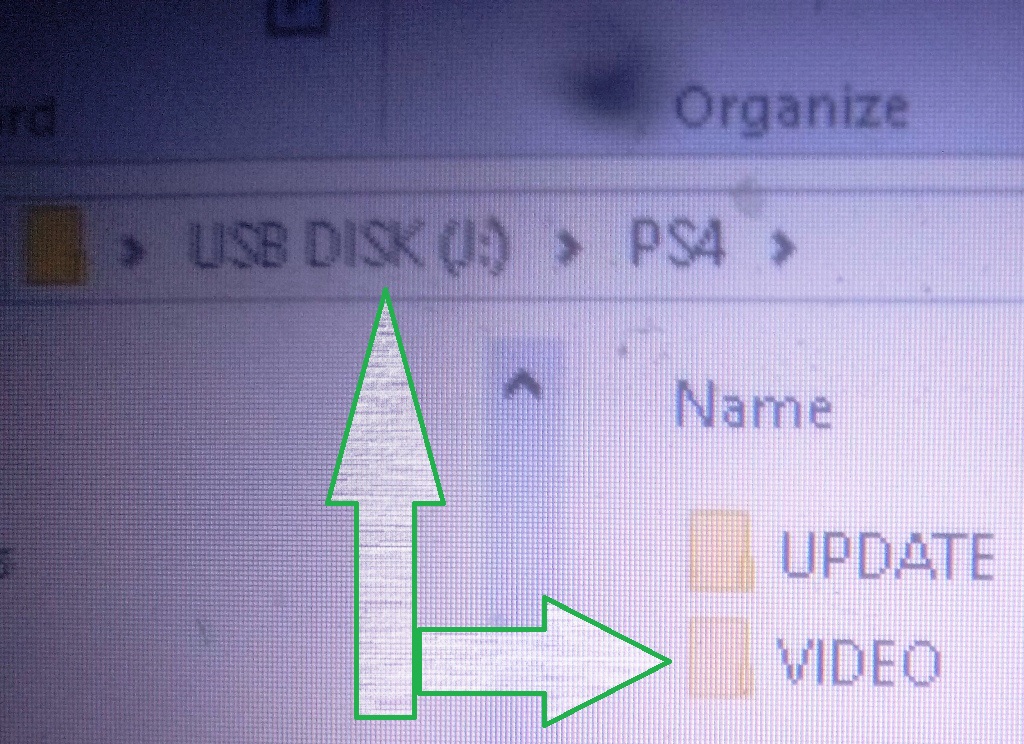
Next open the USB flash drive and create a new folder and give it a name. This is the folder you will store your media files.
Create folder in usb drive to store media files
To keep things in order create a folder called VIDEOS to store video files and create another folder called MUSIC to store music files.
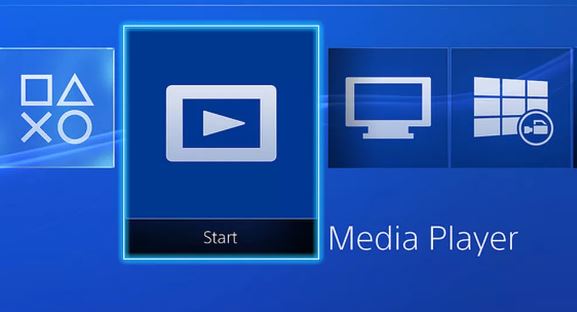
On your PS4, download the app called MEDIA PLAYER and ensure it is installed on the console.
PS4 media player
Insert the USB flash drive in your PS4 then start MEDIA PLAYER.
Media player will display your USB flash drive storage. Click on it and navigate to the folder called VIDEOS (you created earlier on your PC) then it will display the movie files available. Just click on any movie file to play.
Repeat a similar process to play music files.
The PS4 supports several media file format including;
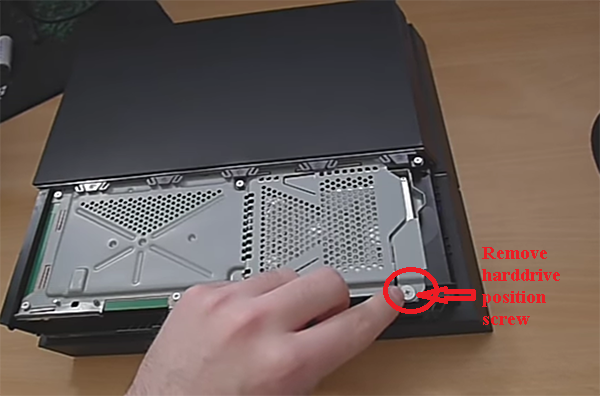
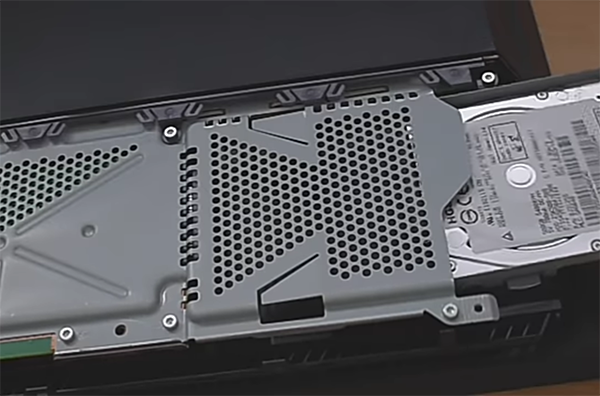
This brief write up will show how you can safely open or disassemble your playstation 4 console if need be. Note that this process will void your warranty if still active. You are advised to forward your faulty PS4 to Sony or any authorised agent for repairs. You risk permanent damage to your console undertaking this yourself. The writer bears no responsibility for any damage caused as a result.
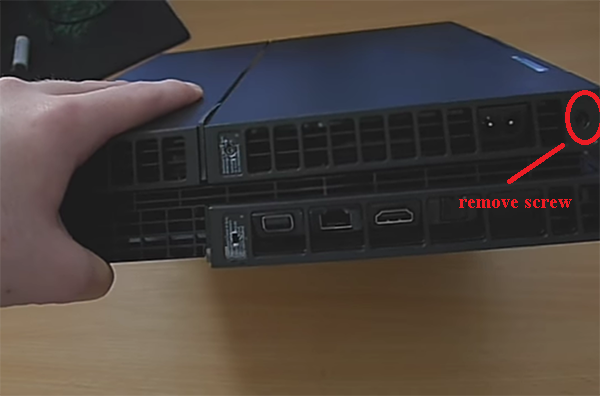
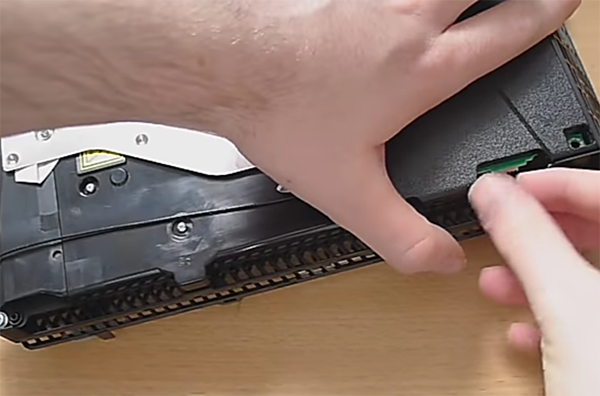
6. Take out the screws inside the warranty stickers, and one each at the sides if need be.
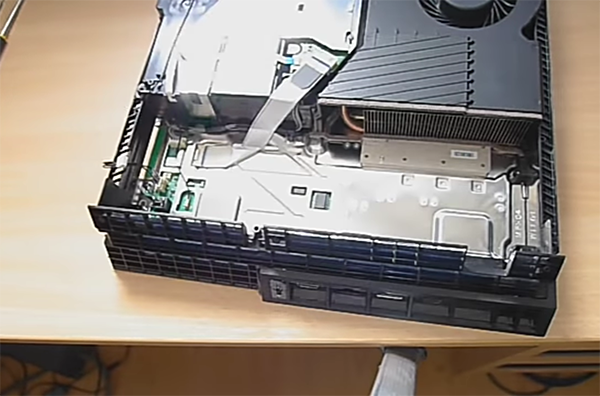
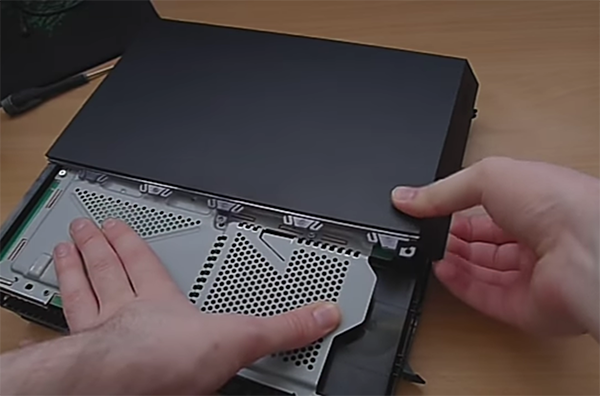
Remove cover; PS4 console
7. Then pull out the cover.
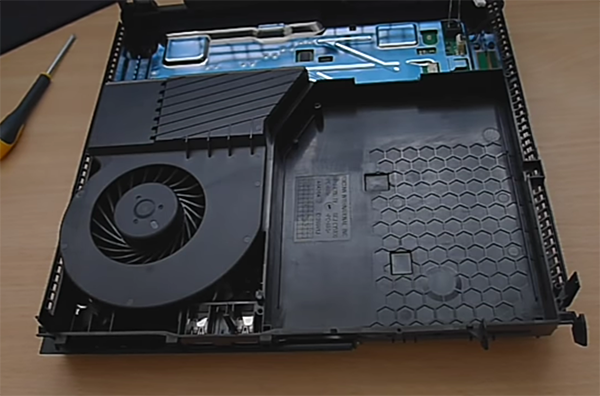
Revealed inner parts; fan, disk drive, power unit; PS4 console
8. On taking out the cover you will see the power pack, blu-ray disk drive and fan.
9. Take out the screws holding the power-pack.
Remove power pack cable
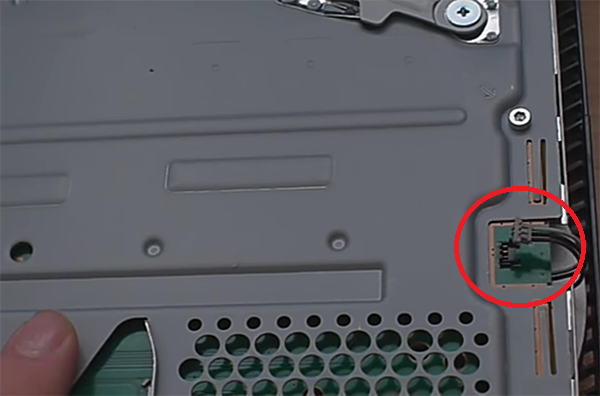
10. Remove the power pack cable connected to the motherboard.
Remove power unit ; PS4 consolePower unit removed; PS4
11. Carefully take out the power pack.
Remove blue ribbon cable; PS4 console
12. Unplug the blue ribbon cable.
Remove black cable; PS4 console
13. Unplug the black cable connected to the motherboard.
Remove Disk- drive cable;PS4 console
14. Remove the disk-drive power cable.
Screws holding black cable; PS4 console
15. Take out the screws holding the black cable previously unplugged.
Take out disk- drive screws; PS4 console
16. Take out the remaining screws holding the disk drive.
remove disk-drive; PS4 console
17. Carefully remove the disk drive.
power unit, disk -drive removed; PS4 console
18. Now bluray drive and power pack are out.
Remove motherboard holding screw; PS4 console
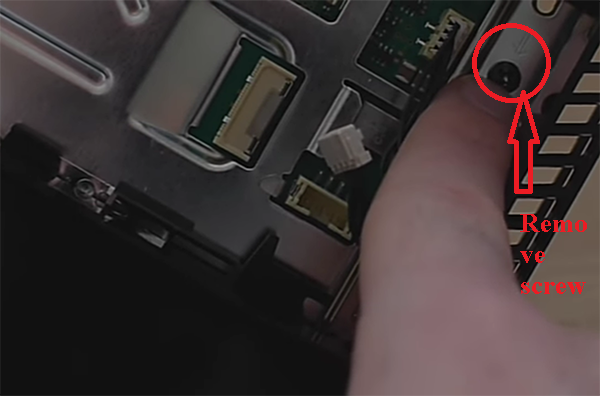
19. Take out this screw.
20. Flip the console again to show top of console.
Remove screws holding second part of top plastic cover; PS4 console
21. Remove the 2 screws holding the plastic cover.
Remove cover; PS4 console
22. Take off the plastic cover.
Remove cable connected to motherboard; PS4 console
23. Remove this cable
Take out plate screws; PS4 console.
24. Take out the remaining screws holding down the motherboard. About 12 in number.
Remove heat sink screws; PS4 console
25. Take out the 2 heat sink screws.
Remove plate; PS4 console
26. Take off the metal plate.
Remove motherboard; PS4 console
27. Carefully remove the motherboard.
PS4 motherboard out
See thermal paste location. To fix back motherboard, you need to remove or scrape out old thermal paste and apply new one.. Failure to do this can cause overheating issues.