Summary of Key Points
- Most entry-level gaming laptops feature expandable RAM slots and extra SSD storage bays.
- Upgrading memory eliminates gaming stutters and improves multitasking performance.
- Adding a second SSD expands storage space for large modern games and speeds up loading times.
- Always check hardware compatibility and warranty rules before purchasing new components.
Introduction
Many gamers ask themselves, can budget gaming laptops be upgraded for RAM and SSD performance after a few years of use? Fortunately, the short answer is yes in most cases. Computer manufacturers understand that budget buyers want affordable entry points, so they usually design these machines with future hardware expansion in mind.
Upgrading your hardware offers a cost-effective way to extend your laptop’s lifespan. Instead of spending thousands of dollars on a brand-new machine, you can simply install extra memory and storage. In this detailed guide, we will explore how upgradeability works, why it matters, and how you can safely upgrade your system.
Can Budget Gaming Laptops Be Upgraded for RAM and SSD?
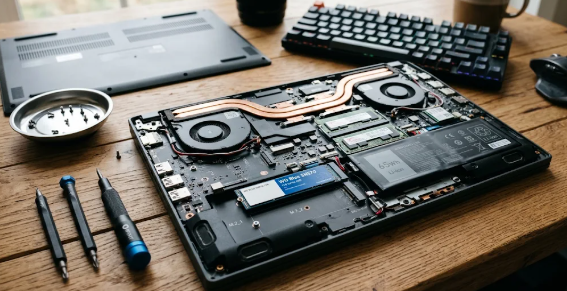
When asking can budget gaming laptops be upgraded for RAM and SSD components, you must look at how manufacturers assemble these devices. Unlike ultra-thin productivity notebooks that solder components directly to the motherboard, most budget gaming laptops feature accessible SODIMM memory slots and standard M.2 NVMe slots.
Typically, budget laptops ship with 8GB of RAM and a 512GB SSD to keep retail prices low. However, modern games often require 16GB of RAM and hundreds of gigabytes of storage space. Consequently, popular brands like Acer, ASUS, Lenovo, and MSI leave open expansion slots so users can add hardware later.
Why You Should Upgrade Memory and Storage
Upgrading your hardware delivers immediate performance improvements without breaking your bank account. Furthermore, upgrading allows your system to handle demanding modern software and complex multitasking effortlessly.
Benefits of Upgrading RAM
Random Access Memory (RAM) acts as your computer’s short-term memory. When your system runs out of memory, performance slows down significantly. Upgrading your RAM from 8GB to 16GB enables dual-channel mode, which boosts frame rates and eliminates annoying stutters during gameplay. Additionally, extra RAM lets you run background applications like Discord or web browsers while gaming.
Benefits of Upgrading SSD Storage
Solid State Drives (SSDs) store your games, files, and operating system data. Modern AAA games take up massive amounts of storage drive space. Therefore, adding a second M.2 SSD or replacing your existing drive gives you plenty of room for your growing game library. Furthermore, high-speed NVMe SSDs reduce game loading times dramatically.
How to Verify If Your Laptop Is Upgradeable
Before purchasing new components, you should confirm whether your specific laptop model supports upgrades. First, check your laptop manual or visit the manufacturer’s official product support page. Look specifically for terms like SODIMM memory slots and M.2 drive bays.
Second, you can run free software tools like CPU-Z or Crucial System Scanner. These tools scan your system and display available motherboard slots alongside maximum supported hardware capacities. Therefore, you will know exactly what parts to buy without opening the laptop first.
Step-by-Step Guide to Upgrading Your Laptop
Upgrading your laptop hardware is straightforward if you follow a few basic safety steps:
- Turn off your laptop: Shut down the system completely and unplug the external power cable.
- Prevent static electricity: Touch a grounded metal object to discharge static electricity before touching internal parts.
- Remove the back cover: Unscrew the bottom panel carefully using the correct screwdriver bit.
- Disconnect the battery: Unplug the internal battery cable to protect motherboard circuits from short circuits.
- Install the components: Insert your new RAM stick at a 45-degree angle until it clicks flat. Next, slide your new M.2 SSD into its slot and secure it with a small mounting screw.
- Reassemble and test: Reconnect the battery, screw the back cover on, and boot up your laptop to confirm the operating system recognizes the new components.
Ultimately, knowing that can budget gaming laptops be upgraded for RAM and SSD gives budget gamers peace of mind. By spending a modest amount on parts, you unlock higher performance and prolong the usable life of your computer. For detailed technical advice on choosing compatible laptop hardware components, visit Tom’s Hardware guide to PC upgrades.
References
1. Crucial System Advisor – Computer Memory & SSD Compatibility Index.
2. Tom’s Hardware – How to Upgrade Your Laptop’s RAM and Storage.