Parts of a Graphics Processing Unit (GPU)

Modern graphics card or GPU can be expensive and quite intimidating to look at. Here is a brief explanation of parts of a standard high end  GPU so that you can be more comfortable handling one.

Referring to the figure above

  1. PCIE connector: along the bottom of the card is the connector for the PCIe x 16 socket on your motherboard. It must be firmly seated into the motherboard and will be held in place by a clip or slide on the socket
  2. Output ports: this port enable you to connect your monitor to the graphics card. Modern graphics cards now have in addition, the DVI and HDMI ports.
  3. Exhaust Vent: the exhaust vent helps to get some of the massive amounts of heat generated by the card out of the case. Not all graphics cards have vents but most high-end ones do.
  4. Cooling fans: if your GPU is a powerful one it must be fitted with fans in addition to the heat sink. In other words not all GPUs come fitted with fans.
  5. Cross switch connector: cross switch connector is used to connect to another GPU. Not all high-end GPUs come with this kind of connector.
  6. Power supply port: many modern graphics cards now have their own separate power connection, separate from the power that goes to the motherboard.
  7. Speed controller switch: this is the fan speed controller switch. It is used to manually control the fan speed.

About Power Supply Unit. (PSU) of a PC

power supply unit (PSU)

The power supply unit PSU is often the most overlooked component of the PC. It is also the component that usually first develops a fault. When purchasing a PSU, make sure it has enough capacity to power all the components of your PC and with a little to spare. The PSU should have enough capacity to power the CPU, GPU, HDD,  CD drive,  motherboard and with a little to spare in case of an upgrade.

To know the PSU capacity you should buy, add up the power requirements of all major components of your PC, will give you a great idea of the power capacity ups you should have.

Modern power supply units for PCs are usually rated between 1000 to 1500 Watts.

Types of PSU

The two types of PSU out there are the wired and  the modular PSU. The wired PSU comes with connecting  wires attached permanently to the  power unit. The modular PSU comes with connecting wires detached from the power unit, you only plug the ones that are needed. The modular PSU is more expensive due to the convenience it provides.

Power connectors

This refers to the connecting wires from the power unit to the PC components. It is your duty to check that the power unit you have purchased has the correct connecting wires and pin mouths to attach to your PC components such as the CPU, GPU  CD-ROM , DVD and so on.

20 + 4 pin connector:

this is the connector for the motherboard. Your motherboard may come with a 20 or 24 pin connector.

The 4+4 pin connector:

this is the connector for the CPU, it can either be a 4 pin or 8 pin connector.

PCIE 6 Pin Connector:

this is a dedicated connector for modern GPUs. Older GPUs draw their power from the motherboard.

Molex connector:

this connector is used to provide power to the hard drive and the CD drive. Nowadays this connector has been replaced by SATA connectors.

SATA connectors:

these are the latest connectors for hard disk drives and optical drives.

Comparing Hard Disk Drive, HDD and Solid State Drive (SSD)

HDD & SSD

The traditional way to store data on a PC is in the Hard Disk Drive, HDD. These days, the HDD is gradually being replaced with the Solid State Drive, SSD. SSDs read and write data faster than the traditional HDD thereby making computing tasks faster. Presently SSDs are more expensive than HDDs. For instance a 500GB SSD can cost 4 times that of HDD of the same size.

The main differences between an HDD and SSD is as follows;

1.HDD stores data on a magnetic disk using moving parts that are spinning very fast. SSD have no moving parts and store data on integrated circuit assemblies.

2. SSDs are much smaller in size and HDDs, thereby making it possible for slimer laptops to be built.

Further Differences between Hard Disk Drive( HDD) and Solid State Drives ( SSD)

Hard Disk DriveSolid State Drive
Start up timeCan take several secondsAlmost instantaneous
Random Access TimeRanges from 2.9 to 12 ms0.1 ms
Data transfer rateAbout 200MB/ s200 – 1500MB/s
Read LatencyMuch higher than SSDLower
Read performanceSlowerSlower
Noise levelNoise is caused by moving partsNo noise
InstallationShould be installed in such a way that it is Protected from vibration and shockNot sensitive to orientation, vibration and shock
Reliability and LongevityHDD have moving parts and are susceptible to mechanical failures Can last for many years under normal use.

Hybrid Solid State Hard Drive, SSHD

This is a combination of a traditional HDD and SSD. The SSHD has 2 storage spaces. The smaller storage space; usually the SSD and the larger storage space; usually the HDD.  

Cloud Computing; an Introduction

Cloud computing illustration

What is Cloud Computing?

Once upon a time when the personal computer, PC, was created, the user was only limited to information available in his own computer or a local server. As PC usage grew, there was a need to access, query and receive information from a dedicated stable centralized location which is not characterized by downtimes and unavailability.

To many people cloud computing could mean accessing the internet, Gmail, watching movies on Netflix or storing files in a cloud storage service like Google Drive. However cloud computing has a much deeper meaning.

In 2011, The National Institute of Standards and Technology (NIST) gave a final definition for the term ‘Cloud Computing’.

Cloud computing is defined as a model for enabling ubiquitous,convenient, on-demand network access to a shared pool of computable resources. e.g.( applications and services, storage, networks, servers) that can be rapidly positioned and released with minimal management effort of service provider interaction.

Essential Characteristics of Cloud Computing

A good cloud service should have the following characteristics;

  1. On demand self-service
  2. Broad network access
  3. Resource pooling.
  4. Rapid elasticity or expansion
  5. Measured service

Benefits you can get from using a cloud computing service includes;

Pay as you go service: only pay for a service you want to use within a specific time frame.

Security and disaster assistance: you are certain that your service will not be compromised, and even if it happens there will be prompt assistance

Off-site data storage: Cloud storage.

Lower cost of ownership: you only pay for the service you want to use. You don’t need to set up any local server or so.

Access from anywhere: You can access your files from any location around the world using your PC, laptop or mobile device.

Automatic and easily upgraded: you can easily and by yourself upgrade or downgrade your service as desired.

Some Windows Explorer Shortcuts

Have you ever looked for the windows explorer icon in your windows 10 PC to no avail, to deliver yourself from this trouble, just Press Windows key+E to open a new instance of File Explorer directly. 

 Alt+Up Arrow.  Go up one level . 

 Alt+Left Arrow.  Go to the previous folder in history.

Alt+Right Arrow.  Go to the next folder in history. 

Alt+D.  Move the focus to the address bar and select the current path. 

 F4.  Move the insertion point to the address bar and display the contents of the drop-down menu of previous addresses. 

Alt+Enter.  Show properties of the selected file. 

Tab.  Cycle through the following elements: navigation pane, file list, column headings, address bar, search box .

 F11.  Switch in and out of full-screen mode. 

Ctrl+Shift+N.  Create a new subfolder in the current folder. 

Ctrl+Shift+E.  Expand the navigation pane to the current  folder.

Choosing the right RAM for your PC

installed RAM on PC motherboard

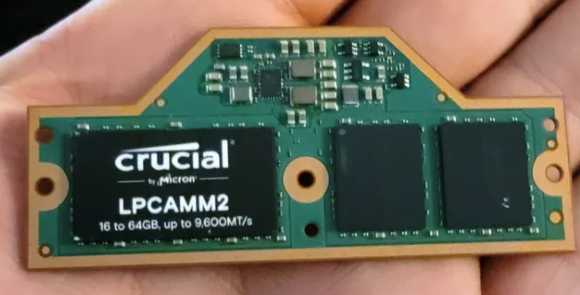
Random Access Memory (RAM) stores memory temporarily for your computer programs to quickly access and use. RAM helps your computer run fast. In Fact apart from the Central Processing Unit, CPU, RAM is the next piece of hardware that helps boost the overall speed of your PC.

Buying good RAM for your PC is as important as the CPU. Even with a good CPU, running your PC on a poor RAM will slow down your PC.

There are many RAMs available, so you must choose the right RAM for your PC. Compatibility is a huge factor, always check that your PC is compatible with the RAM you want to buy before purchasing.

RAMs

The two major pieces of information you should look out for in a RAM is its speed and storage capacity. The higher the speed and storage capacity of the RAM, the better.

Based on the type of PC you have, want to buy or build, There is usually a maximum limit of the RAM it can take. If you are building a PC, check the information that comes with the motherboard. Compatible RAMs and maximum RAM memory is clearly stated. If you bought a prebuilt PC/ laptop, check its user manual.

Most PCs come with 2 slots for installing RAM. The limiting factor is usually the maximum storage capacity of RAM it can handle. See the figure below. 

RAM memory limits for window based PCs

For instance if a PC can only handle a maximum of 8GB RAM, and it comes with 2 slots (which means you can install 2 RAMs), it’s either you install one 8GB RAM on one of the slots or two 4GB RAMs, one on each of the slots.

It is usually better to install the maximum capacity of RAM that your PC can take on one slot rather than sharing it across 2 slots.Your PC will run much faster using the first option.