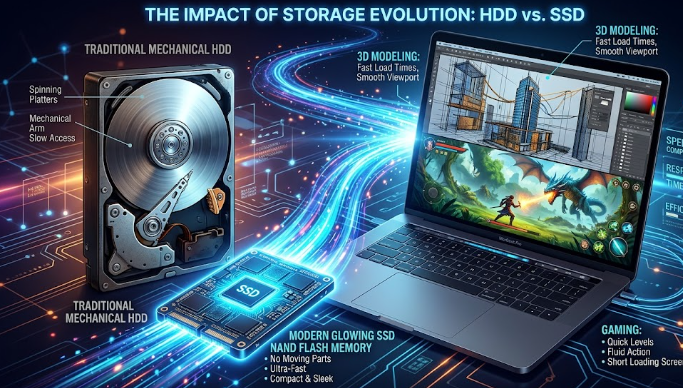
Is your laptop moving as slow as a snail? If your computer takes minutes to turn on, you likely have an old Hard Disk Drive (HDD). Upgrading from HDD to SSD is the most effective way to breathe new life into your machine. Unlike an HDD, which uses a spinning metal platter and a moving needle, a Solid State Drive (SSD) uses flash memory chips.
Because an SSD has no moving parts, it can read and write data almost instantly. Think of an HDD like a physical library where a robot must walk to a shelf to find a book. In contrast, an SSD is like a digital search engine that provides the answer immediately. This change creates a massive speed boost for every task you perform.
Improving Your Daily Digital Experience
When you finish upgrading from HDD to SSD, you will notice an immediate difference in internet browsing. Modern websites are heavy and full of scripts. Your browser constantly saves temporary files to your drive. An SSD handles these small “write” tasks instantly. Consequently, your tabs will load faster, and the browser will no longer freeze when you open multiple windows.
Furthermore, system-level tasks become seamless. Your laptop will boot up in seconds rather than minutes. Applications like Microsoft Word or Chrome will bounce onto the screen the moment you click them. This efficiency saves you hours of frustration over time, making your laptop feel like a brand-new device.
Enhancing Professional Work and 2D/3D Modeling
For civil engineers and designers, upgrading from HDD to SSD is a necessity. Software like AutoCAD, Revit, or SketchUp requires the computer to load massive texture files and complex geometries. An HDD struggles to keep up with these demands, leading to “Not Responding” errors. An SSD allows the software to pull data quickly, which makes rotating a 3D model smooth and lag-free.
Rendering also benefits from this hardware update. While the processor (CPU) does the heavy lifting, the SSD ensures that the data flow stays constant. In addition, saving large project files happens in a fraction of the time. This reliability ensures that your professional workflow remains uninterrupted and productive.
Boosting Gaming Performance and Load Times
Gamers benefit significantly from upgrading from HDD to SSD. Modern games are often 50GB to 100GB in size. An HDD takes a long time to “stream” these assets into the game world. This results in long loading screens and “texture pop-in,” where objects suddenly appear in the environment. An SSD eliminates these issues by providing a high-speed data pipeline.
Moreover, competitive games run more reliably. You will often be the first person to load into a match. While an SSD does not necessarily increase your “frames per second” (FPS), it prevents the stuttering caused by the drive trying to fetch data. This creates a much more immersive and enjoyable gaming experience.
Understanding the Different Types of SSDs
Before you buy a drive for upgrading from HDD to SSD, you should know the two main types. The first is the SATA SSD. This looks like a small brick and fits into the same slot as an old laptop hard drive. It is the most common choice for older laptops. It is about five times faster than a traditional HDD.
The second type is the NVMe SSD (M.2). These look like a small stick of gum. They plug directly into a special slot on the motherboard. NVMe drives are incredibly fast, reaching speeds up to 30 times faster than an HDD. If your laptop supports M.2 slots, this is the best technical specification to choose for maximum performance.
Protecting Your SSD from Damage and Slowness
To keep your new drive fast after upgrading from HDD to SSD, you must follow a few maintenance rules. First, never “defragment” an SSD. Defragging is for mechanical HDDs and can actually wear out the memory cells on an SSD. Your operating system handles SSD maintenance automatically using a feature called “TRIM.”
Secondly, avoid filling the drive to 100% capacity. An SSD needs “breathing room” to move data around internally. Try to keep at least 15% of the drive empty. Finally, keep your laptop cool. High heat can cause an SSD to slow down to protect itself. Ensure your laptop vents are clean to maintain top speeds.
For a deeper dive into the technical differences between these storage types, you can read more at PCMag’s Guide to SSDs.
References
- Dell Support (2026). SSD vs. HDD: Key Differences and Performance Benefits.
- Circuit Globe (2026). Comparison of Electromechanical and Solid-State Storage.
- ResearchGate (2025). A Comparative Study of NAND Flash Memory vs. Magnetic Storage.