Summary of Key Points
- Windows Task Manager: Offers a quick look at available slots and memory form factor without opening your laptop.
- Third-Party Diagnostic Tools: Free programs like CPU-Z reveal exact slot details and memory configurations.
- Manufacturer Specifications: Checking official spec sheets or upgrade advisors gives definitive hardware details.
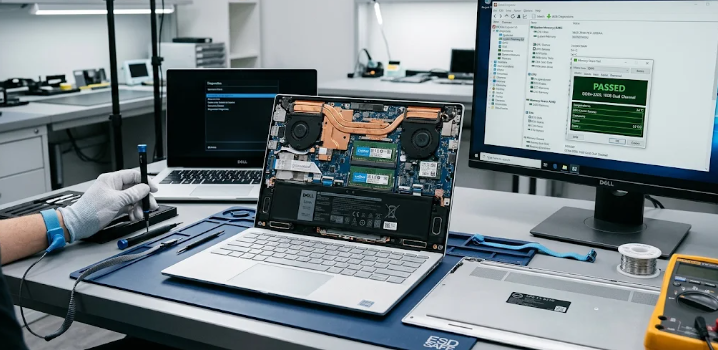
- Physical Inspection: Opening the bottom panel reveals whether memory sticks sit in removable SO-DIMM slots or attach permanently to the motherboard.
Introduction
If your computer stutters during daily multitasking, adding memory often provides an affordable speed boost. However, before purchasing new hardware modules, you must learn how to check if your laptop RAM is soldered or upgradable. Many modern ultra-thin notebooks weld memory chips directly onto the motherboard, which prevents future physical upgrades.
Fortunately, you can easily discover your computer’s upgrade limits without voiding your warranty. In this guide, we will explore quick software methods and official resource lookups to determine your RAM layout.
Method 1: Check Windows Task Manager
First, Windows users can gather immediate system information directly through built-in system tools. This simple process requires no installation of extra software.
To begin, press Ctrl + Shift + Esc to launch the Task Manager interface. Next, click on the Performance tab on the left sidebar and select Memory. Look at the lower section of the window to find the field labeled Form factor.
If the form factor displays ROW (SODIMM) or SODIMM, your laptop likely contains removable memory modules. Conversely, if it displays Soldered or Onboard, your memory attaches permanently to the system board. Furthermore, pay attention to the Slots used section. If the software shows available slots, you can usually insert extra RAM sticks easily.
Method 2: Use CPU-Z System Information Tool
Although Task Manager works well, it occasionally misreports hardware data on custom motherboards. Therefore, using a dedicated hardware diagnostic tool provides deeper accuracy.
First, download and install CPU-Z, which is a free standard system tool for Windows. Open the program and navigate directly to the SPD (Serial Presence Detect) tab. Click through the drop-down menu under the Memory Slot Selection section.
If the drop-down menu lists active memory slots with detailed specifications (such as module size, bandwidth, and manufacturer), your laptop features removable sticks. However, if all slot options remain blank or greyed out, your computer uses onboard memory soldered directly to the system board.
How to Check If Your Laptop RAM Is Soldered or Upgradable Using Official Specs
In addition to software detection, reading official manufacturer documentation gives you definitive answers. Hardware companies clearly outline expandability options in user manuals and support guides.
First, note your laptop’s exact model number, which usually sits on a sticker on the bottom panel. Next, search the manufacturer’s official support website for your specific model specifications. Look for sections labeled Memory Specifications or System Expansion.
Manufacturers usually list memory under three distinct categories:
- Non-upgradable / Onboard: Memory chips mount permanently, so no additional expansion slots exist.
- Upgradable: The laptop contains standard SO-DIMM memory slots for swapping or adding RAM.
- Hybrid: The system includes a fixed amount of soldered memory alongside one open expansion slot.
Physical Inspection and System Manuals
If software tools leave any doubt, you can inspect the physical motherboard or check dedicated upgrade guides online. Many teardown websites provide clear photos of popular laptop models.
For instance, specialized repair websites feature detailed guides showing exact internal component layouts. If you decide to remove the bottom cover yourself, always turn off the device and disconnect the battery first. Removable RAM modules sit inside metal clips that snap open easily, whereas soldered RAM appears as small flat rectangular chips soldered directly near the processor.
To check hardware support databases and verify memory specs for your specific device model, visit Crucial Memory Advisor for quick hardware compatibility reports.
References
Microsoft Support. (2024). How to check system memory and performance in Windows. Microsoft Corporation.
Crucial Hardware Team. (2023). Understanding Onboard RAM vs. Removable SODIMM Slots. Micron Technology.