Summary of Key Points
- Thermal throttling automatically reduces processor speed to protect internal components from destructive heat.
- Cleaning fan vents and elevating your laptop base improves natural airflow immediately.
- Optimizing NLE software settings with proxies and lower playback resolution cuts CPU and GPU workload.
- Adjusting maximum CPU power states stops aggressive heat spikes without impacting render speeds significantly.
Introduction
Video editors often face sudden system slowdowns, dropped frames, and loud fan noise during intensive rendering tasks. Learning how to fix thermal throttling and laptop overheating while editing will protect your hardware performance and save your project deadlines. When your graphics card and processor hit maximum temperatures, your operating system forces them to run slower. Consequently, your editing software stutters and video exports take twice as long.
Fortunately, you can stop these thermal issues using simple software adjustments and physical maintenance routines. This detailed guide covers actionable solutions to keep your laptop cool under heavy creative workloads.
Understanding Thermal Throttling
Modern processors generate massive heat when rendering 4K footage, applying complex visual effects, or generating color grades. When temperatures cross dangerous thresholds—usually around 90°C to 100°C—the CPU and GPU lower their clock speeds automatically. Hardware manufacturers design this safeguard mechanism to prevent physical hardware destruction.
However, this protective feature severely degrades your editing productivity. Timeline scrub performance drops, audio desynchronizes, and export times multiply significantly. Therefore, controlling internal temperatures is essential for maintaining consistent editing performance.
How to Fix Thermal Throttling and Laptop Overheating While Editing
You can apply several effective strategies to solve heat buildup during demanding video editing workflows. Follow these proven hardware and software methods to regain full performance from your computer.
1. Elevate Your Laptop and Clear Dust Vents
Airflow blockage causes most heat issues in portable computers. Laptops pull cool air through bottom vents and push hot air out through side or rear exhausts. Dust particles rapidly accumulate inside fan blades, restricting airflow and trapping heat inside the chassis.
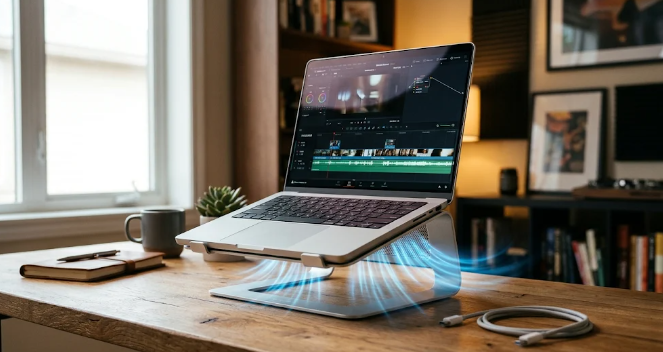
First, clean your cooling fans using a can of compressed air. Second, avoid placing your computer on soft surfaces like beds, blankets, or laps. Instead, set your laptop on a hard desk surface and use a simple stand to elevate the base. This small elevation gap increases fresh air intake and lowers overall operating temperatures by several degrees.
2. Optimize Editing Software Settings
High-resolution raw video playback forces your hardware to decode heavy files in real-time. You can dramatically reduce processing load by tweaking your editor settings. For example, create media proxies in lower resolutions such as 1080p ProRes or DNxHR for editing timeline clips.
Furthermore, drop your playback preview resolution to half or one-quarter inside your editing software. This setting reduces rendering stress on your graphics card without changing your final export quality. Additionally, pause background rendering tasks while scrubbing to keep temperature spikes to a minimum.
3. Adjust Operating System Power Plans
Default maximum performance power plans force your CPU to maintain high boost clock frequencies constantly. This maximum state creates intense heat even during light editing operations. You can fine-tune power settings inside your operating system to limit unnecessary energy consumption.
Navigate to your system power options and edit your active power plan settings. Change your maximum processor state from 100% down to 95% or 99%. This slight change disables aggressive CPU boost behavior, resulting in dramatically cooler running temperatures with negligible loss in export speed.
4. Use High-Quality Active Cooling Pads
Passive elevation helps, but high-powered active laptop cooling pads deliver far superior results. Quality cooling pads feature large, high-RPM fans that force continuous cold air into your laptop bottom intake grilles.
Look for cooling pads that feature sealed foam gaskets or focused airflow channels. These specialized designs create positive air pressure, driving heat out of internal heat sinks much faster than passive air movement alone.
5. Replace Thermal Paste and Undervolt
Factory thermal paste degrades over years of high-heat cycles, reducing heat transfer efficiency from the processor to heat pipes. Replacing old thermal compound with high-performance thermal paste restores optimal thermal conductivity.
Additionally, advanced users can undervolt their processors using tuning software. Undervolting reduces voltage supplied to the CPU without lowering clock speeds. Consequently, your laptop consumes less power and generates significantly less heat during heavy export cycles.
Final Thoughts on Heat Management
Maintaining cool internal components extends your laptop lifespan and ensures smooth timeline scrubbing. When you know how to fix thermal throttling and laptop overheating while editing, you can render complex visual projects without frustrating system crashes or performance throttles. For additional technical insights on hardware optimization during media production, explore expert benchmark guides on Puget Systems.
References
Intel Corporation. (2023). Understanding CPU Thermal Throttling and Temperature Limits.
Adobe Systems. (2024). Optimizing Hardware Performance for Premiere Pro and After Effects.
Puget Systems. (2023). Hardware Guidelines and Thermal Analysis for Content Creators.